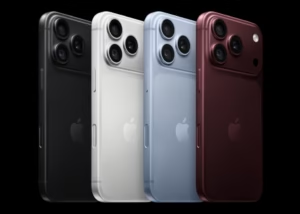
Most of us use our iPhones every day without exploring much beyond
calls, messages, email and the camera. Yet some of the most useful tools
are already built in – and a handful of genuinely helpful apps can add
even more.
Whether you use your iPhone personally or as a business handset,
these 15 tips can help you save time, solve everyday problems and get
more from the device you already carry.
Menu names can vary slightly depending on your iPhone model and
version of iOS.
1. Check your battery health – not just the remaining charge
Battery percentage tells you how much power is left today.
Battery health gives you an indication of how the
battery is ageing over the longer term.
Open Settings → Battery → Battery Health (or
Battery Health & Charging on some iOS versions).
Here you can see the battery’s maximum capacity compared with when it
was new, along with any important service messages. On supported models,
Apple also provides charging options such as Optimised Battery Charging
or a charge limit.
If an iPhone no longer lasts through a normal working day, check the
battery-use chart on the main Battery screen too. It shows which apps
and activities are consuming the most power. Poor battery life is not
always caused by the battery itself; high screen use, weak mobile
signal, navigation and background activity can all contribute.
2. Make the remaining charge last longer with Low Power Mode
Battery health and Low Power Mode do different jobs. Battery health
shows long-term condition; Low Power Mode helps
conserve the charge you have left right now.
It reduces or pauses some background activity, such as email
fetching, background app refresh, automatic downloads and certain visual
effects. The battery icon turns yellow while it is active.
Depending on the iPhone and iOS version, find it under
Settings → Battery or Settings → Battery →
Power Mode. You can also add it to Control Centre for quicker
access.
It is particularly useful during a long day away from a charger,
while travelling or when you need to preserve enough power for an
important call.
3. Turn the Action button into a useful shortcut
On supported iPhone models, the Action button
replaces the traditional Ring/Silent switch. It is set to control Silent
mode by default, but it can do much more.
Go to Settings → Action Button and choose what
happens when you press and hold it. Two of the most useful choices
are:
- Torch: handy when entering a dark stockroom,
checking equipment or finding something in the car. - Camera: useful when you need to capture a photo
quickly without unlocking the phone and looking for the app.
It can also start a Voice Memo, open Translate, activate a Focus mode
or run a custom Shortcut. Choose the function you genuinely need most
often – a clever shortcut is only useful if you remember it is
there.
4. Set up your Emergency Medical ID
The iPhone’s Medical ID can make important
information available to somebody helping you in an emergency, without
them needing your passcode.
Open the Health app, tap your profile picture and
select Medical ID. You can add details such as medical
conditions, allergies, medication and emergency contacts. Enable
Show When Locked if you want emergency responders to be
able to view it from the Lock Screen.
Keep the information accurate and review it if your medication,
conditions or emergency contacts change. It only takes a few minutes to
set up and may be one of the most worthwhile features on the phone.
5. Scan and sign documents without a scanner
You do not need a separate scanner app for most everyday paperwork.
The built-in Notes and Files apps can
capture a document, detect its edges, straighten the image and save it
as a clean scan.
In Notes, create or open a note, tap the attachment control and
choose Scan Documents. Once scanned, open the document
and use Markup to add a saved or handwritten
signature.
It is useful for signed forms, receipts, delivery paperwork and
expenses. For sensitive business information, follow your organisation’s
rules about where the resulting file should be stored or shared.
6. Measure objects – and use the built-in spirit level
Apple’s free Measure app uses the camera to estimate
the dimensions of objects and spaces. It can be useful for checking
whether furniture, packaging or equipment is likely to fit.
The same app also includes Level, turning the iPhone
into a simple spirit level for shelves, pictures, desks and other quick
checks. There is usually no need to download a separate bubble-level
app.
Treat the results as a helpful estimate rather than a replacement for
a tape measure, professional survey or calibrated tool where precision
matters.
7. Use Personal Hotspot when trusted Wi-Fi is unavailable
Personal Hotspot lets a laptop or tablet use your
iPhone’s mobile-data connection. It can be invaluable when working away
from the office, during a broadband outage or when the available public
Wi-Fi is unsuitable.
Go to Settings → Personal Hotspot and allow other
devices to join, then connect using the Wi-Fi password displayed on the
iPhone. Some mobile plans or network settings may affect
availability.
Remember that a laptop can consume data quickly through video calls,
cloud synchronisation and software updates. Performance will also depend
on mobile coverage, congestion and the phone’s signal. A hotspot is an
excellent temporary option, but not always the right replacement for
properly designed business connectivity.
8. Create reminders based on time or place
The built-in Reminders app can do more than create a
basic to-do list. You can set recurring reminders, assign priorities,
attach notes and receive a prompt when you arrive at or leave a
location.
For example, you might ask your iPhone to remind you to:
- Submit expenses every Friday.
- Call a customer when you leave a site.
- Collect equipment when you arrive at the office.
- Review a contract a week before renewal.
For anything business-critical, use an appropriate shared task or CRM
system as well. Personal reminders are helpful prompts, but they should
not become the only record of an important commitment.
9. Use Focus modes to protect work and personal time
Focus lets you decide which people and apps can
interrupt you in different situations. You can create modes for Work,
Personal, Driving or Sleep and switch them manually or automatically by
time, location or app.
A Work Focus might allow calls from colleagues and customers while
hiding distracting social notifications. A Personal Focus can do the
reverse outside working hours. You can also choose which Home Screen and
Lock Screen appear in each mode.
Be careful not to silence genuinely important calls. Review the
allowed people, apps and repeated-call settings before relying on a new
Focus setup.
10. Copy text, numbers and addresses straight from an image
With Live Text, your iPhone can recognise writing in
the camera view or an existing photograph. Press and hold the text to
copy it, translate it, look it up or take an appropriate action.
This is surprisingly useful for:
- Copying a serial number from an equipment label.
- Dialling a phone number from a sign or business card.
- Opening an address in Maps.
- Capturing printed notes without retyping them.
- Copying tracking information from packaging.
Always check the result before using it. Similar characters – such as
0 and O – can still be misread, particularly
on damaged or poorly printed labels.
11. Test Wi-Fi and mobile data with Speedtest
The free-to-download Speedtest by Ookla app measures
download speed, upload speed and latency on Wi-Fi or mobile data.
It is useful when diagnosing whether a problem relates to the office
connection, local Wi-Fi or the mobile network. Try one test on Wi-Fi,
then switch Wi-Fi off and repeat it on mobile data. If possible, also
test in another part of the building.
A single result is only a snapshot. Signal, congestion, server choice
and other users on the connection can all affect it, so take several
tests at sensible intervals before drawing conclusions. Speedtest is
free to download and includes advertising and optional in-app
purchases.
12. Identify products and objects with Google Lens
Google Lens, available through the free Google app
on iPhone, lets you search using the camera or an existing photo instead
of typing a description.
It can help identify a product, plant, landmark or unfamiliar piece
of equipment; find similar items online; copy printed text; and locate
instructions for something when you do not know its exact name.
It is particularly handy when a model number is missing or you are
trying to source a visual match. As with any visual-search tool, treat
the result as a lead rather than proof – especially when identifying
equipment, plants or anything safety-critical.
13. Translate text, signs and conversations
Apple’s built-in Translate app can translate typed
or spoken phrases, while the iPhone camera can help with text on signs,
menus and documents. Language packs can also be downloaded for some
offline use – useful when travelling without reliable data.
This can help with everyday travel and basic conversations, but
automated translation can miss context, tone and specialist terminology.
Use a professional translator for legal, medical, contractual or
otherwise important communication.
14. Estimate your pulse with Instant Heart Rate
Instant Heart Rate is a free-to-download app that
uses the iPhone camera and flash to estimate your pulse. You place a
fingertip gently over the camera and follow the on-screen guidance while
it detects changes associated with blood flow.
It can be an interesting general-wellness tool or a convenient way to
record an approximate resting pulse. However, it is not a medical
device, diagnosis or emergency service. Do not use it to rule out a
health problem, and seek appropriate medical help if you are unwell or
concerned. The app contains optional purchases, and health-app privacy
settings are worth reviewing before use.
15. Use Back Tap to switch on the torch or open the camera
Back Tap is one of the iPhone’s best hidden
features. It lets you trigger an action by tapping the back of the phone
twice or three times.
Go to Settings → Accessibility → Touch → Back Tap,
then choose an action for Double Tap or Triple Tap. Useful options
include taking a screenshot, opening Control Centre, activating the
Magnifier or running a custom Shortcut.
For everyday use, the torch or
camera are particularly good choices. Back Tap can give
you a fast way to reach either one even if your iPhone does not have a
configurable Action button.
It usually works through an ordinary case, although very thick cases
may reduce reliability. If it triggers accidentally, try changing the
action from Double Tap to Triple Tap.
You may already have the tool you need
The common theme is that you do not need to fill your iPhone with
paid or advert-heavy apps. Apple already includes capable tools for
scanning, measuring, translating, reminders, document signing and
emergency information. A few carefully chosen free apps can then add
functions that are genuinely different.
For business users, it is also worth agreeing which apps, settings
and security controls should be standard across company devices. A
useful feature on one phone becomes far more valuable when staff know
how to use it consistently.
Make your business mobiles work harder
CMM Telecoms supplies and supports business iPhones across
Vodafone, EE and O2. Whether you are equipping one
employee or deploying handsets across a larger workforce, we can help
you choose suitable devices and tariffs, manage upgrades and provide
ongoing UK-based support.
We can also discuss mobile device management for businesses that need
greater control over company data, applications and security.
Want better support for your business mobiles? [Contact CMM
Telecoms] to discuss your requirements.